Printable guide for iPhone & Windows 11 Someone showed you once. Now it’s written down.
67 everyday iPhone and Windows 11 jobs, one page each, in plain words. Print the cards you need and keep them by your phone and computer.
- One payment, no subscription
- 30-day refund, no reason needed
- Instant download
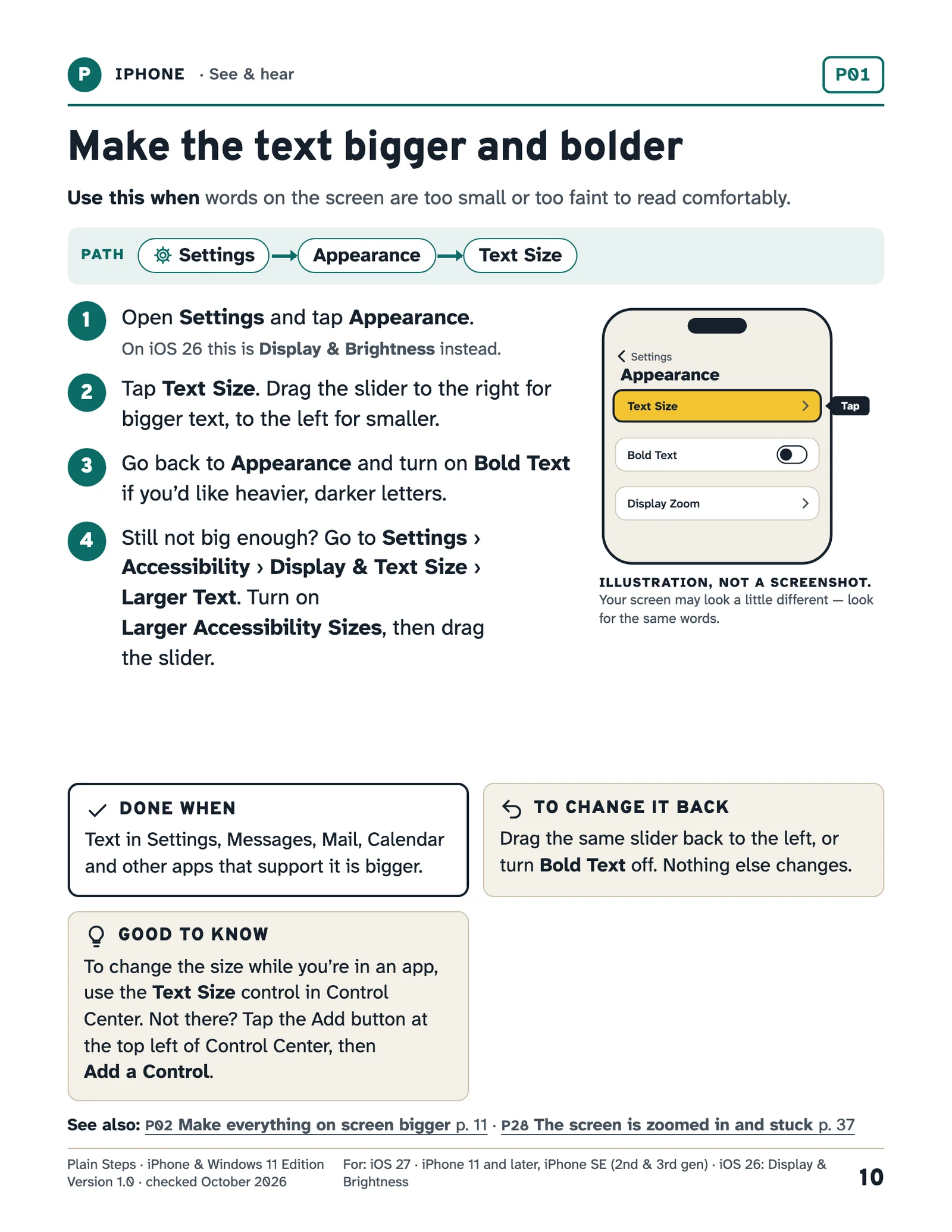
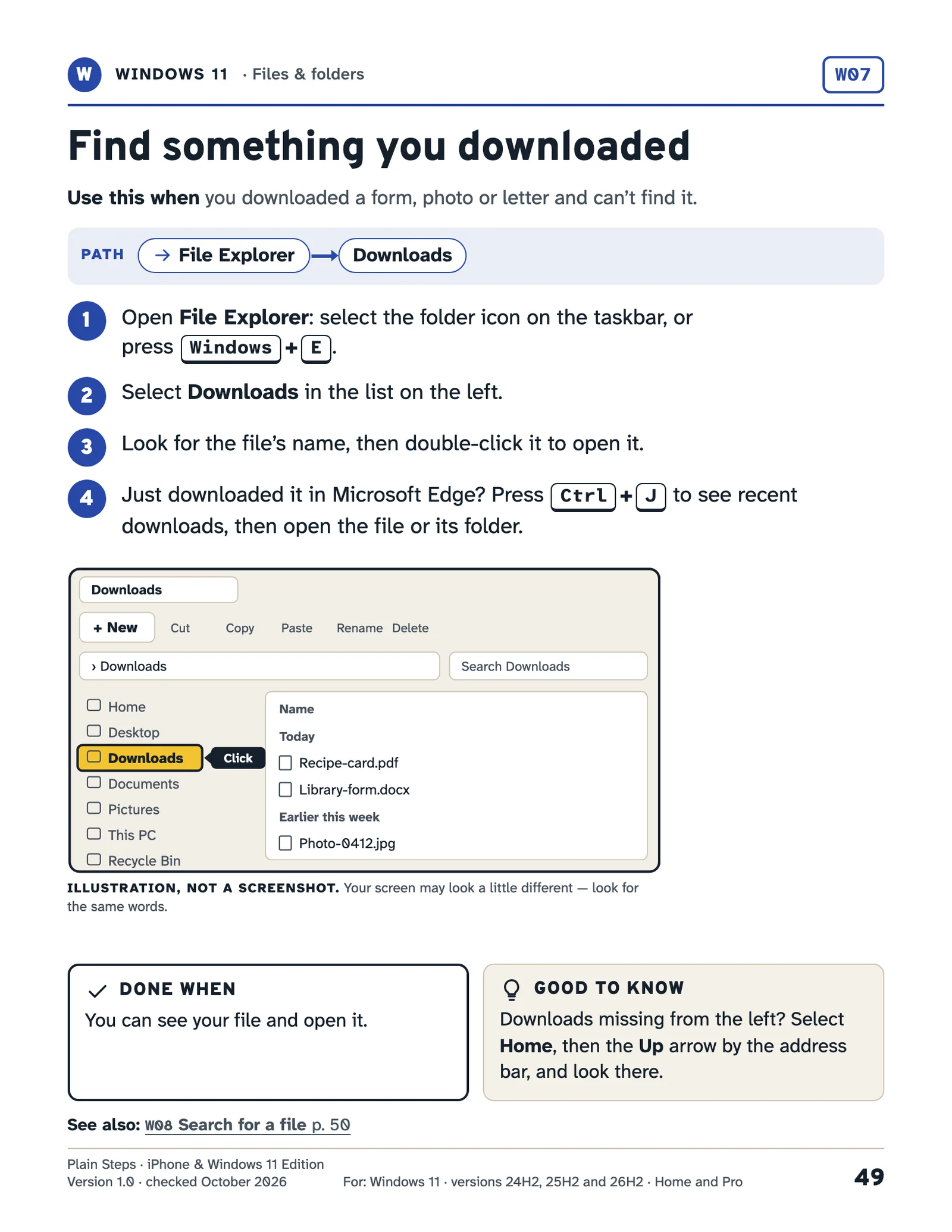
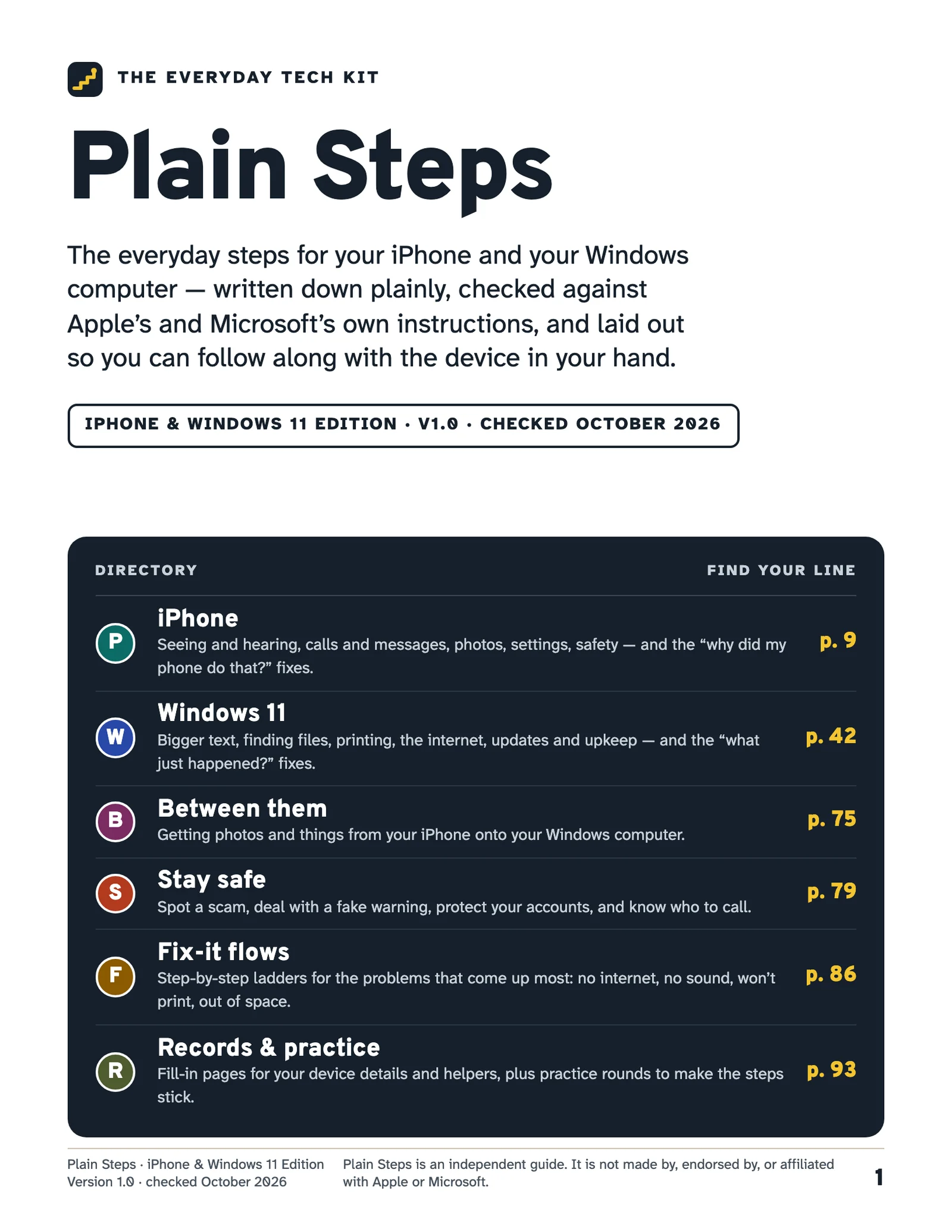
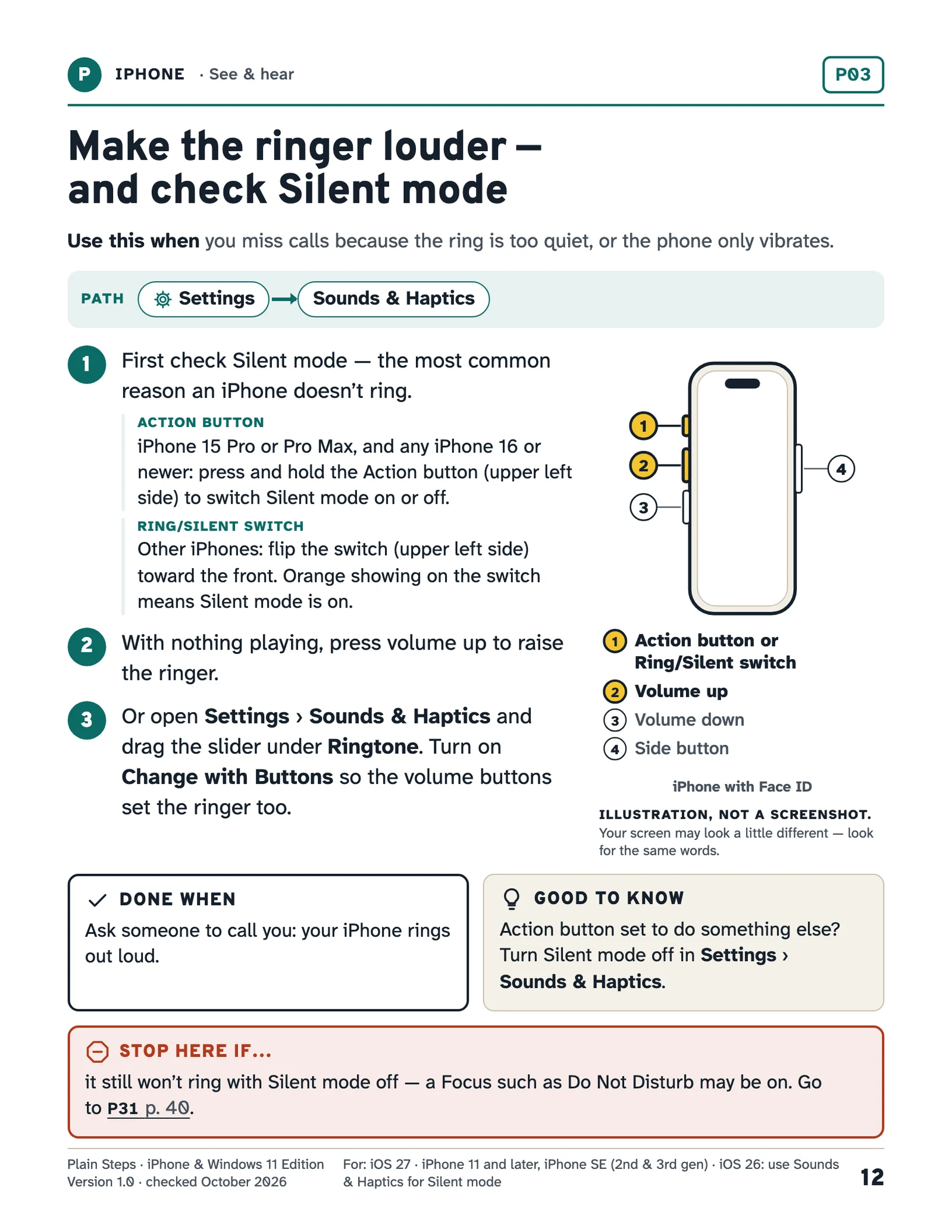
- 67 one-page task cards
- 117 pages in the US Letter guide
- 2 paper sizes: US Letter and A4
- 215 official sources checked
What it helps with
Look it up. Follow the steps. Check it worked.
Plain Steps is a $29 printable kit by Wren & Co.: one-page, step-by-step task cards for everyday iPhone and Windows 11 jobs, written in plain language.
“The text is too small to read.”
Make words bigger and bolder on the phone and the computer, and zoom in on a web page.
P01 Make the text bigger and bolder
W01 Make the text bigger“Something changed, and I don’t know what I pressed.”
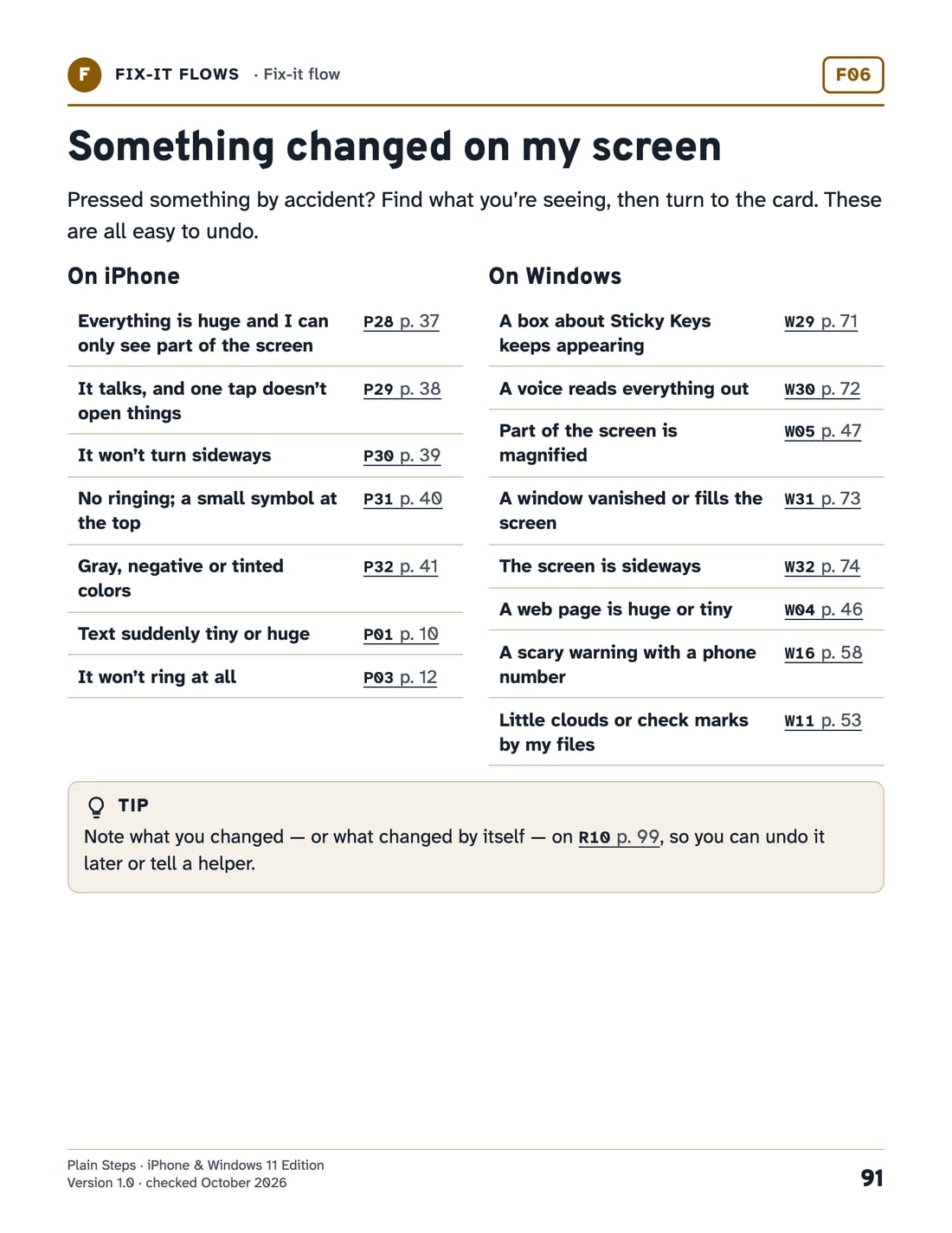
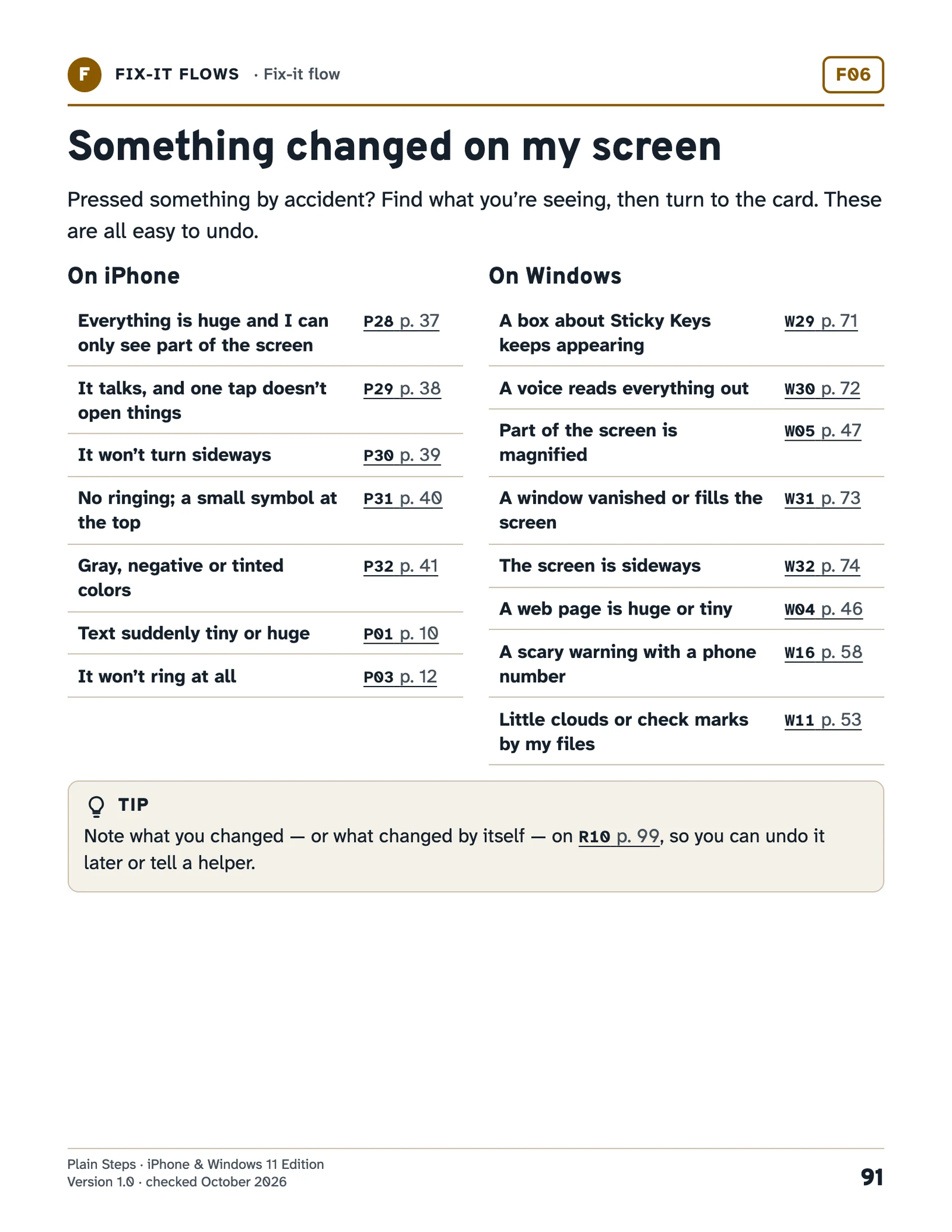
One page lists what can change by accident, like a zoomed screen or a talking phone, and sends you to the fix.
F06 Something changed on my screen
“Where did my download go?”
Find the file, then save the next one where you’ll find it again.
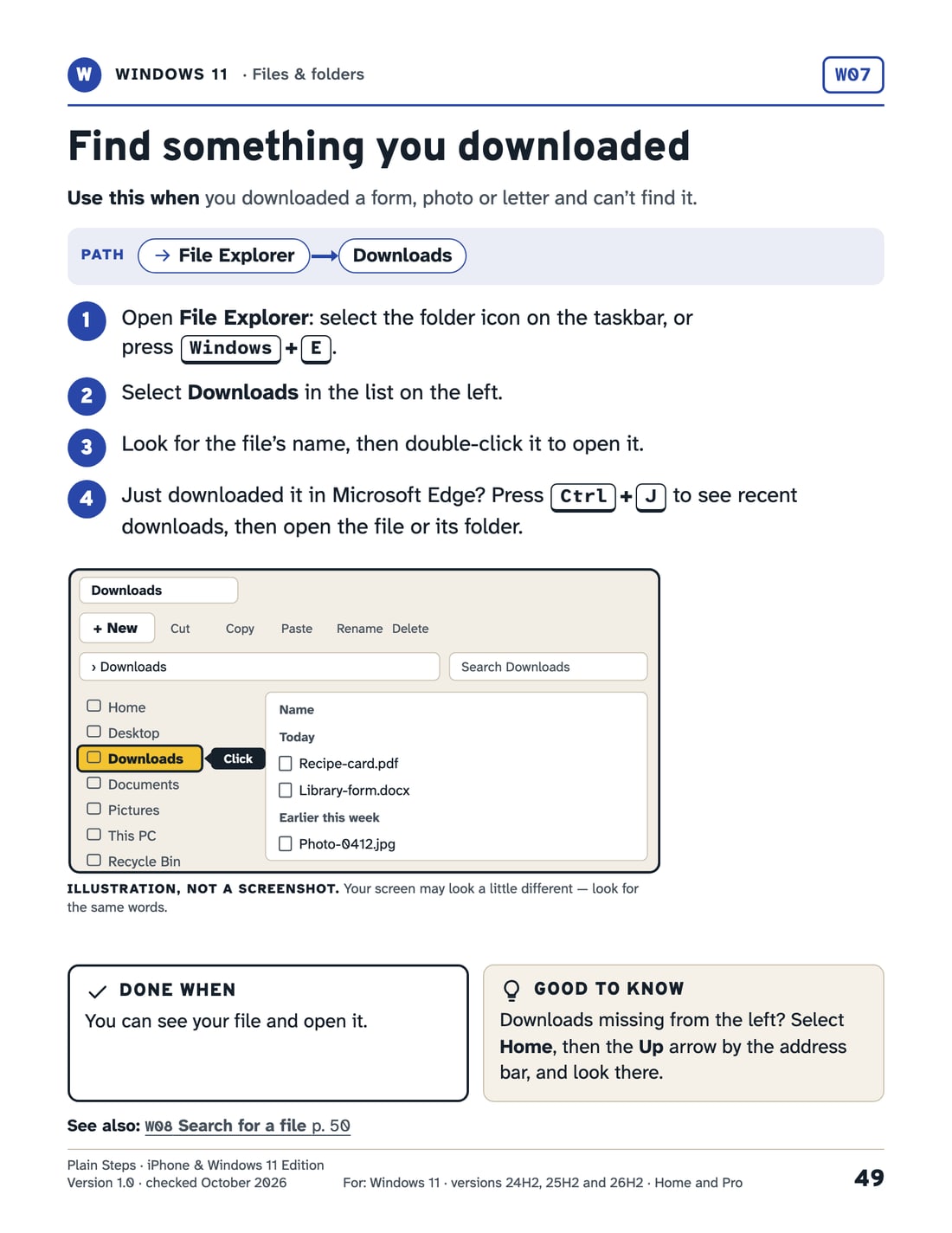
W07 Find something you downloaded
W10 Save a file where you can find it again“Is this message a scam?”
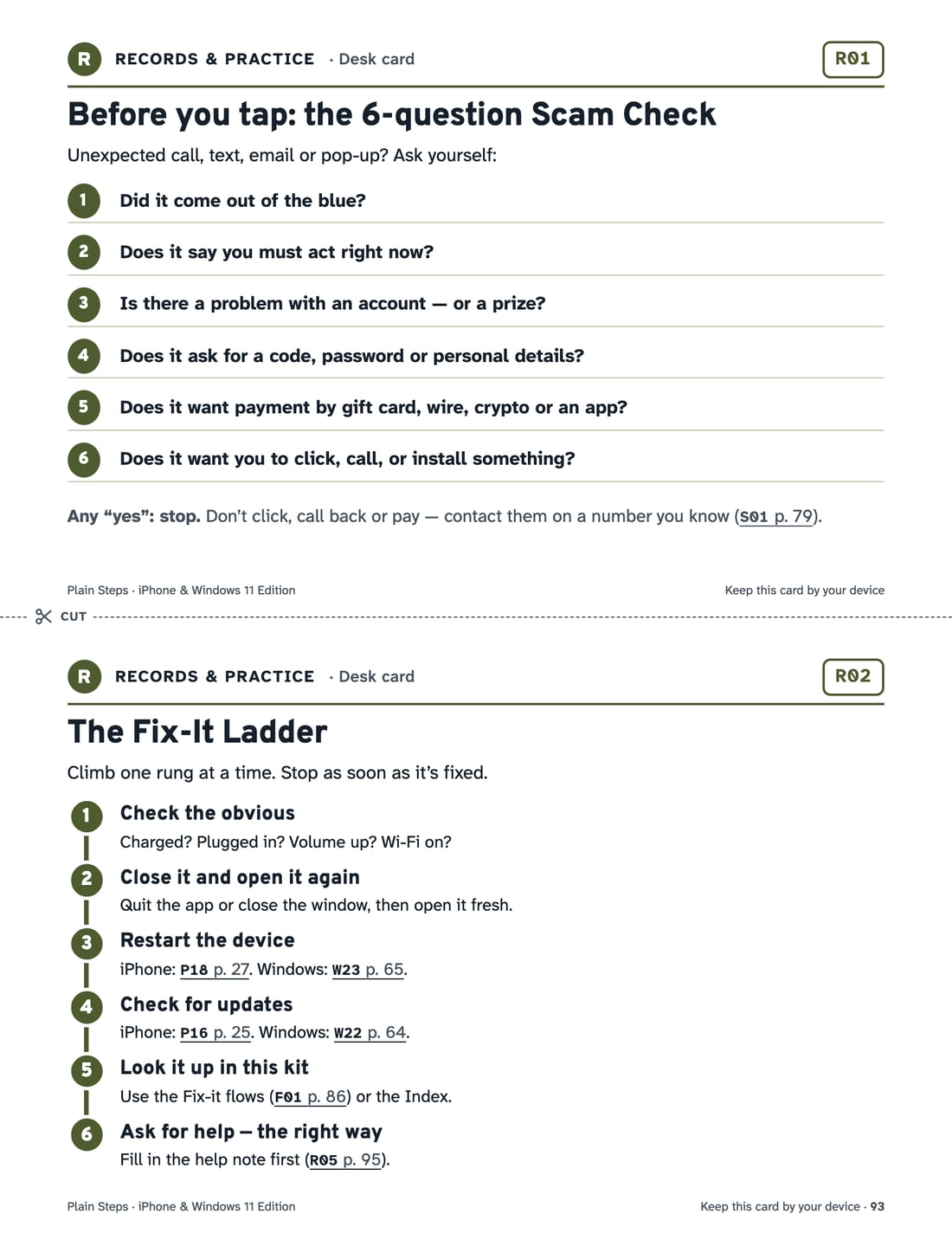
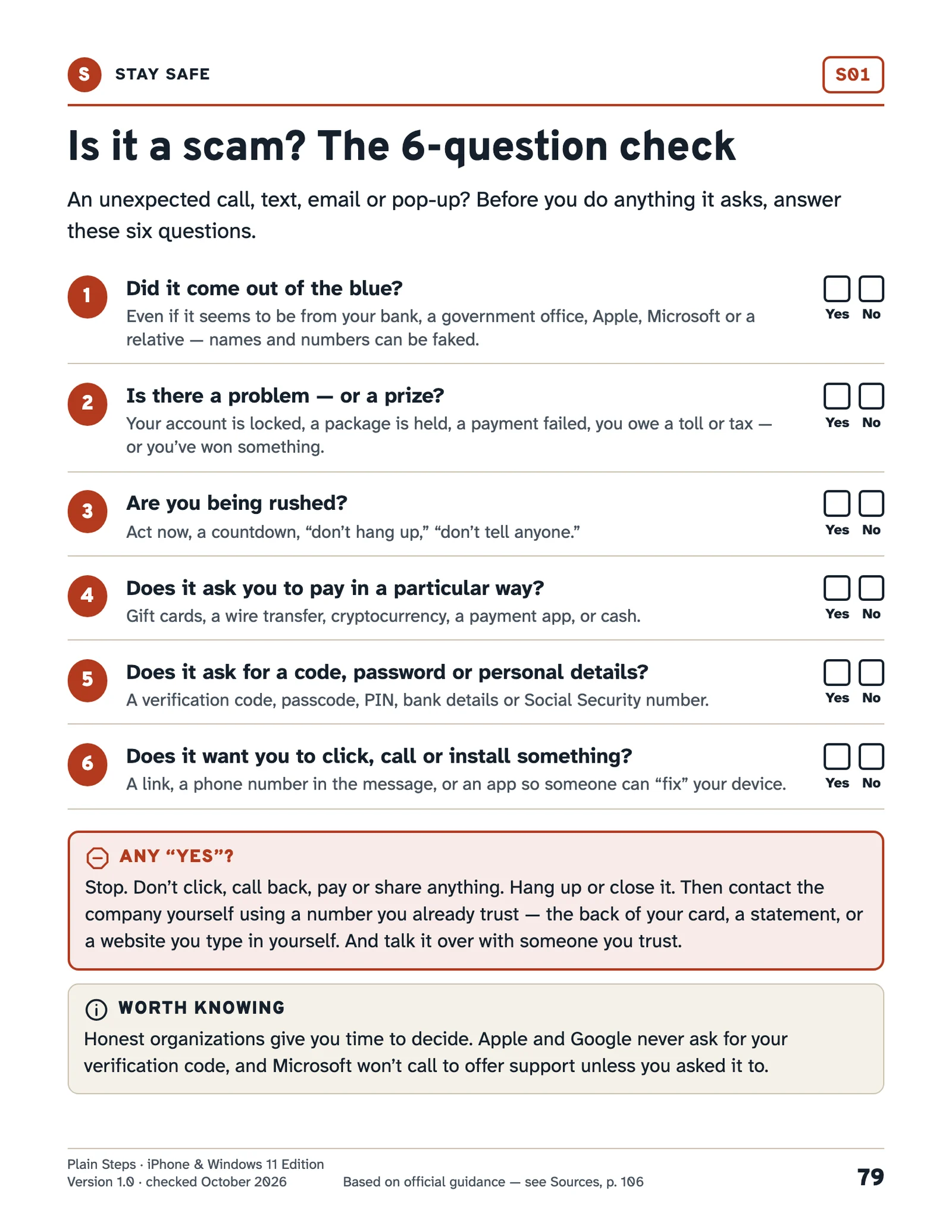
Six questions to ask before you tap, call or pay, and what to do if you already did.
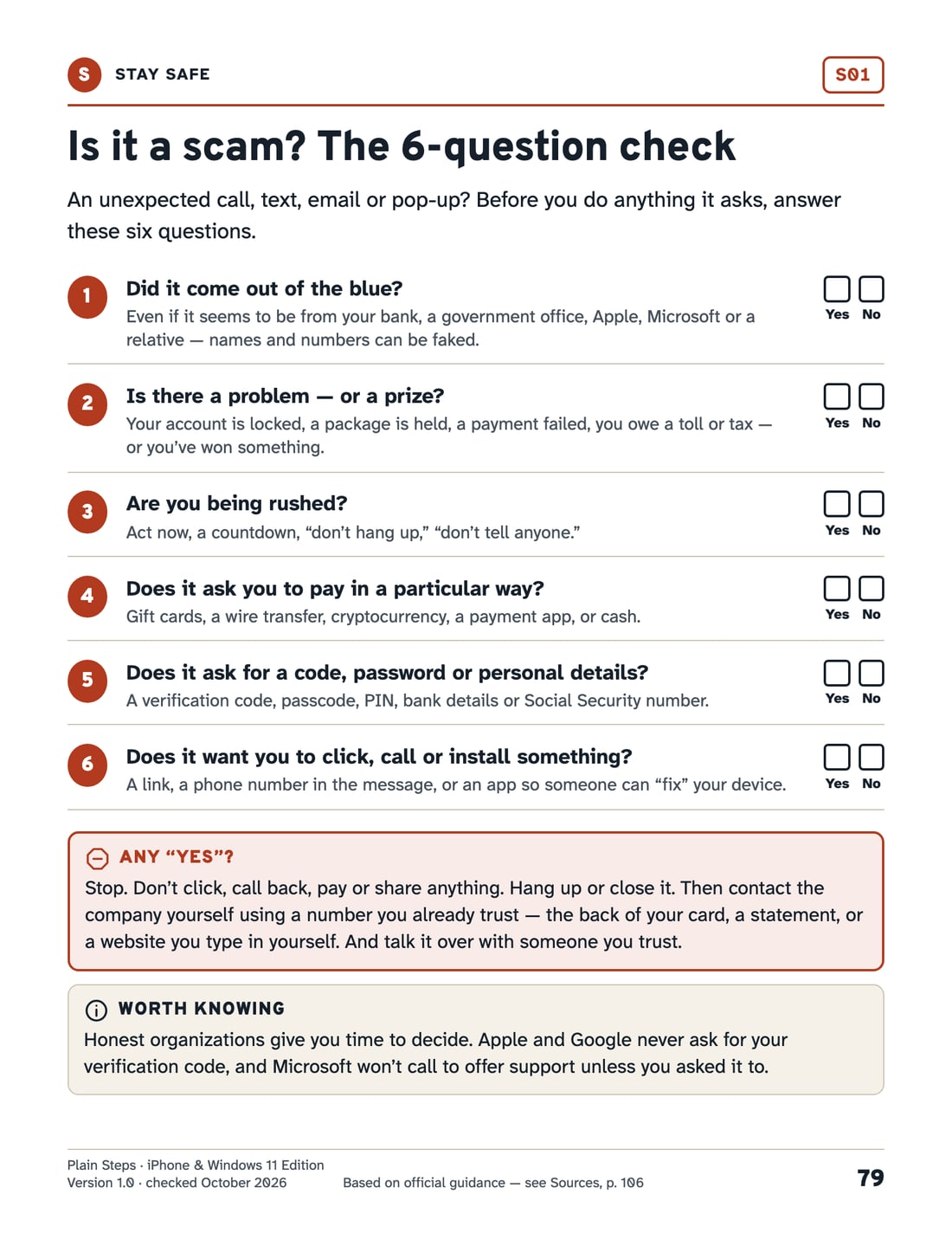
S01 Is it a scam? The 6-question check
S04 If you think you’ve been scammed
How a card works
Every card has the same five signposts.
Once you’ve used one card, you know your way around all of them.
The path
Where the setting lives, one stop at a time, so you can find your way even if your screen looks a little different.
Numbered steps
Do one, look at your screen, do the next. Words in bold are exactly what you’ll see.
A drawing, not a screenshot
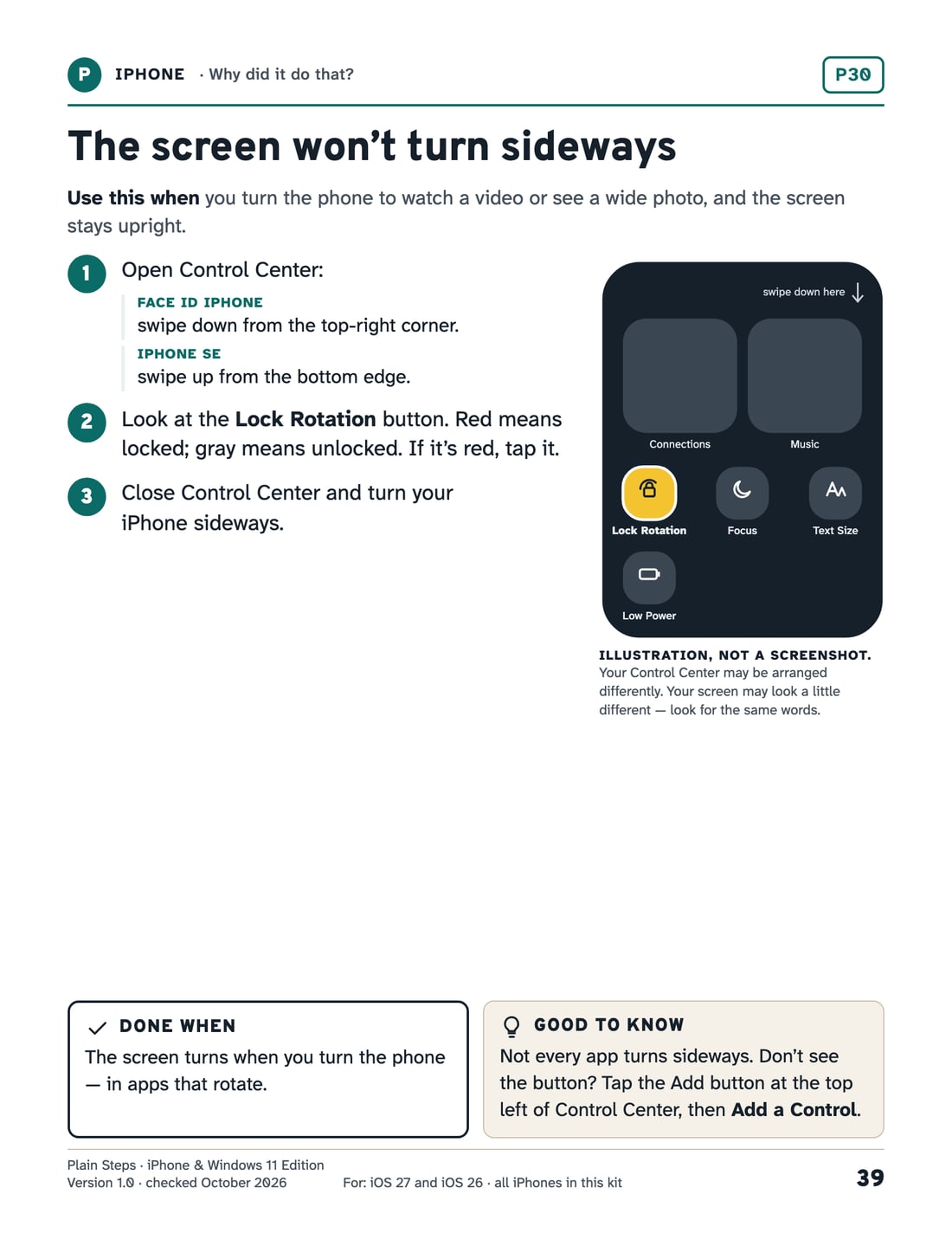
Simplified so the one thing you need stands out, and labeled as an illustration.
Done when
How to tell it worked. Many cards also show how to change it back.
Stop here if…
When to stop and get trusted help instead of pressing on.
What’s inside
Six sections, color-coded like a transit map.
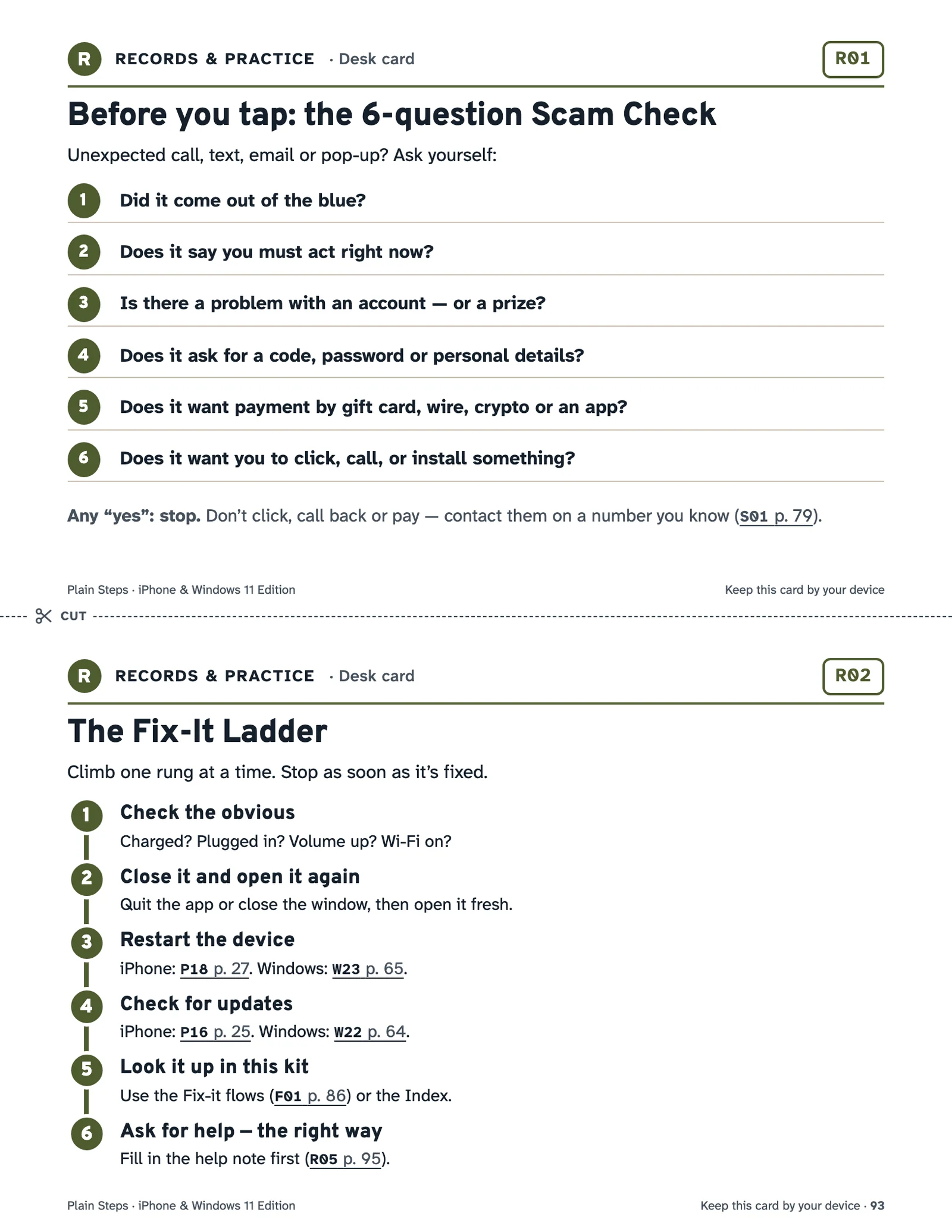
The guide runs 117 pages in US Letter and 116 in A4. A 10-page Print & Keep pack repeats the desk cards (one-page cheat sheets to keep by the phone and keyboard) and the worksheets, for reprinting.
iPhone
32 cardsSeeing and hearing, calls and messages, photos, settings, safety — and the “why did my phone do that?” fixes.
- P01 Make the text bigger and bolder
- P13 Take a screenshot
- P16 Update your iPhone
- P24 Turn on Find My — and find a lost iPhone
- P28 The screen is zoomed in and stuck
Windows 11
32 cardsBigger text, finding files, printing, the internet, updates and upkeep — and the “what just happened?” fixes.
- W01 Make the text bigger
- W07 Find something you downloaded
- W21 Print — or save as a PDF
- W22 Update Windows
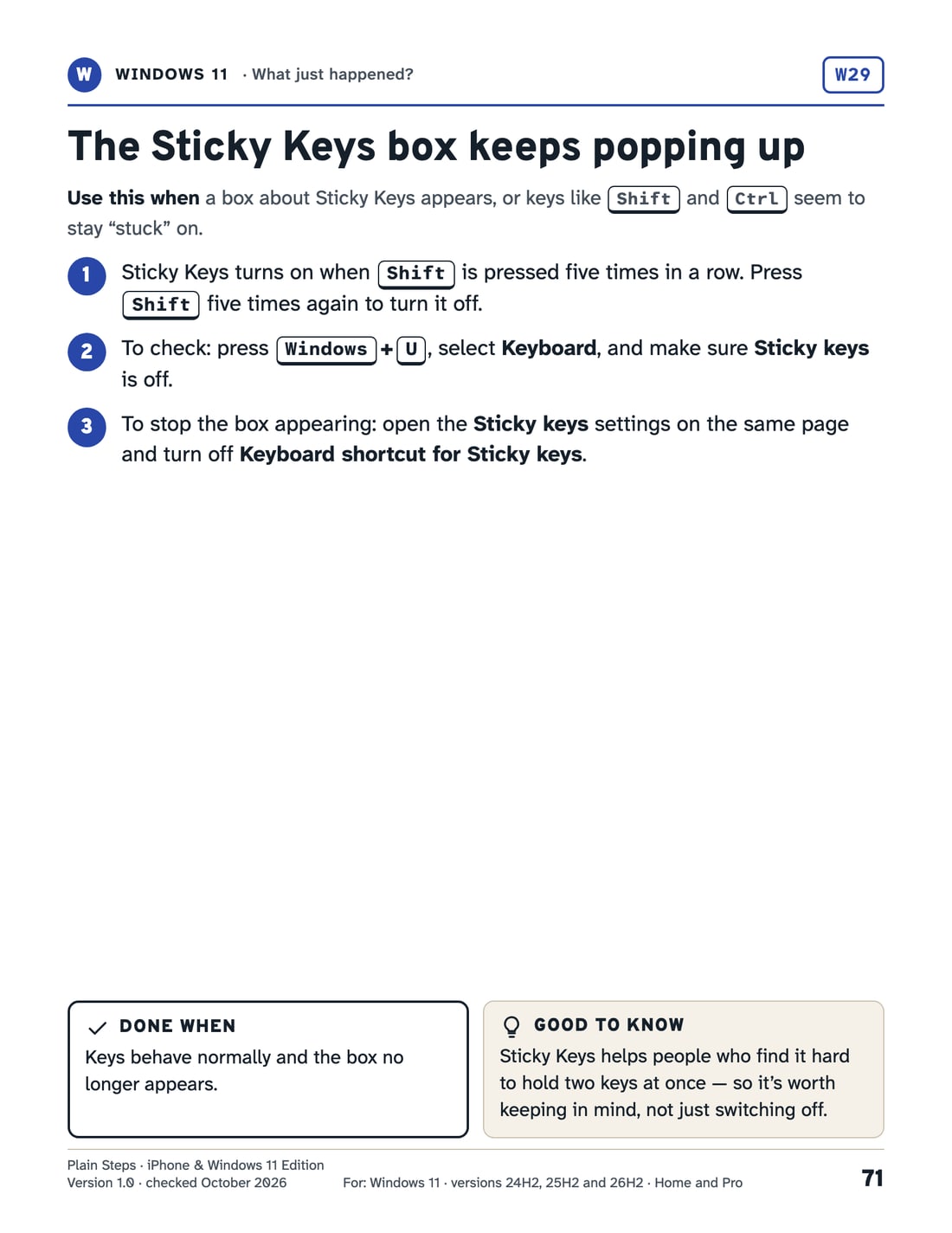
- W29 The Sticky Keys box keeps popping up
Between them
3 cardsGetting photos and things from your iPhone onto your Windows computer.
- B01 Copy photos from your iPhone to your PC with a cable
- B02 See your iPhone photos on your PC with iCloud
- B03 See iPhone texts and calls on your PC (Phone Link)
Stay safe
7 pagesSpot a scam, deal with a fake warning, protect your accounts, and know who to call.
- S01 Is it a scam? The 6-question check
- S04 If you think you’ve been scammed
- S06 Where to report a scam
Fix-it flows
7 flowsStep-by-step ladders for the problems that come up most: no internet, no sound, won’t print, out of space.
- F02 No internet
- F04 The printer won’t print
- F06 Something changed on my screen
Records & practice
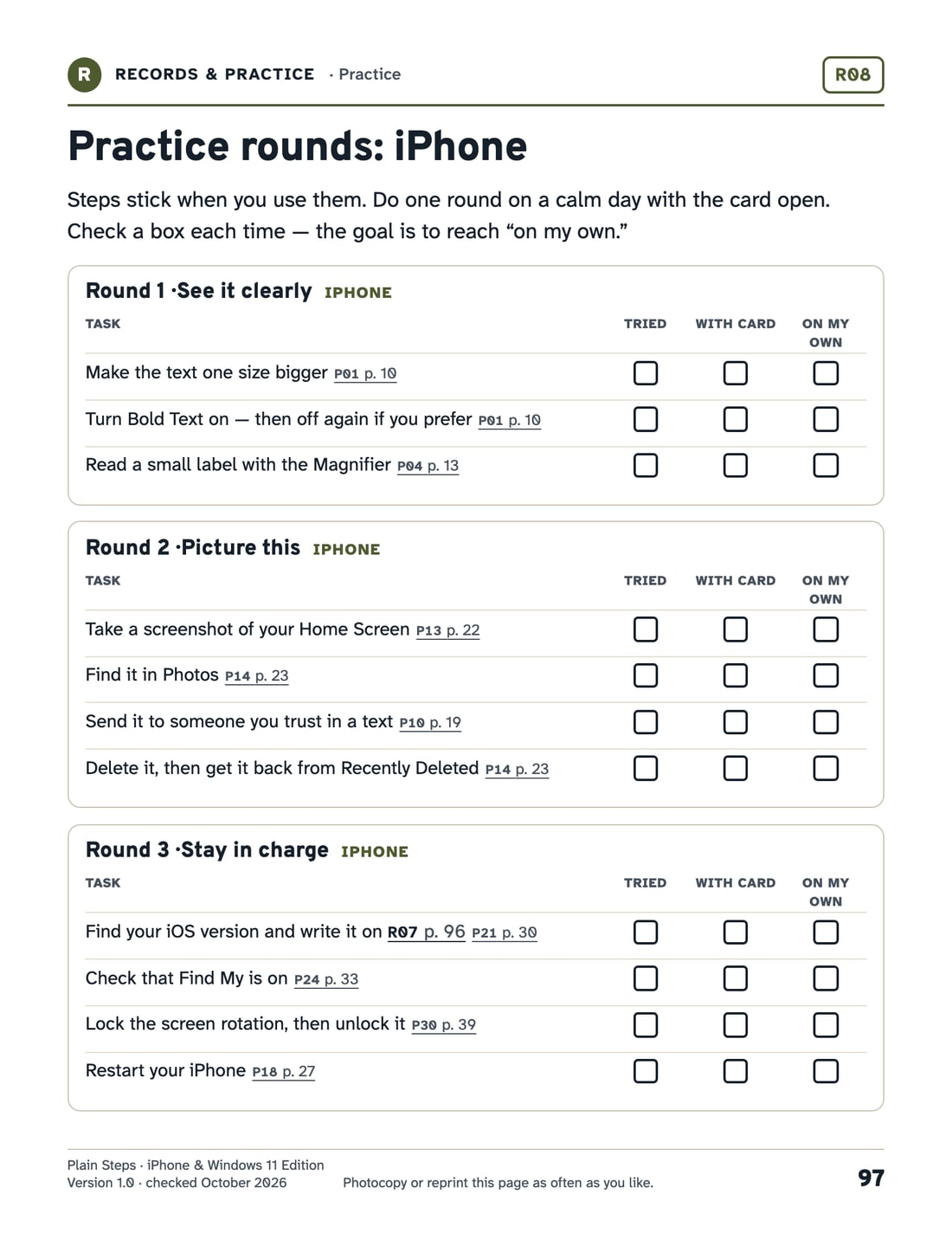
13 pagesFill-in pages for your device details and helpers, plus practice rounds to make the steps stick.
- R01 Before you tap: the 6-question Scam Check
- R05 Help note: “Here’s what happened”
- R08 Practice rounds: iPhone
See every card and page in the kit
iPhone
- P01 Make the text bigger and bolder
- P02 Make everything on screen bigger
- P03 Make the ringer louder — and check Silent mode
- P04 Read small print with the Magnifier
- P05 Have your iPhone read the screen aloud
- P06 Answer, decline or quiet a call
- P07 Block a caller and screen unknown numbers
- P08 Deal with junk text messages
- P09 Add someone to your contacts and favorites
- P10 Send a photo in a text message
- P11 Type by talking (Dictation)
- P12 Make a FaceTime video call
- P13 Take a screenshot
- P14 Find, delete and get back photos
- P15 Connect to Wi-Fi
- P16 Update your iPhone
- P17 Free up storage space
- P18 Restart your iPhone (or force a restart)
- P19 Make the battery last longer
- P20 Connect headphones, speakers or hearing aids
- P21 Find your iPhone model and iOS version
- P22 Get apps, delete apps, check subscriptions
- P23 Set up Medical ID and Emergency SOS
- P24 Turn on Find My — and find a lost iPhone
- P25 Check your Apple Account is well protected
- P26 Find a saved password (Passwords app)
- P27 Back up your iPhone with iCloud
- P28 The screen is zoomed in and stuck
- P29 My iPhone is talking and taps don’t work
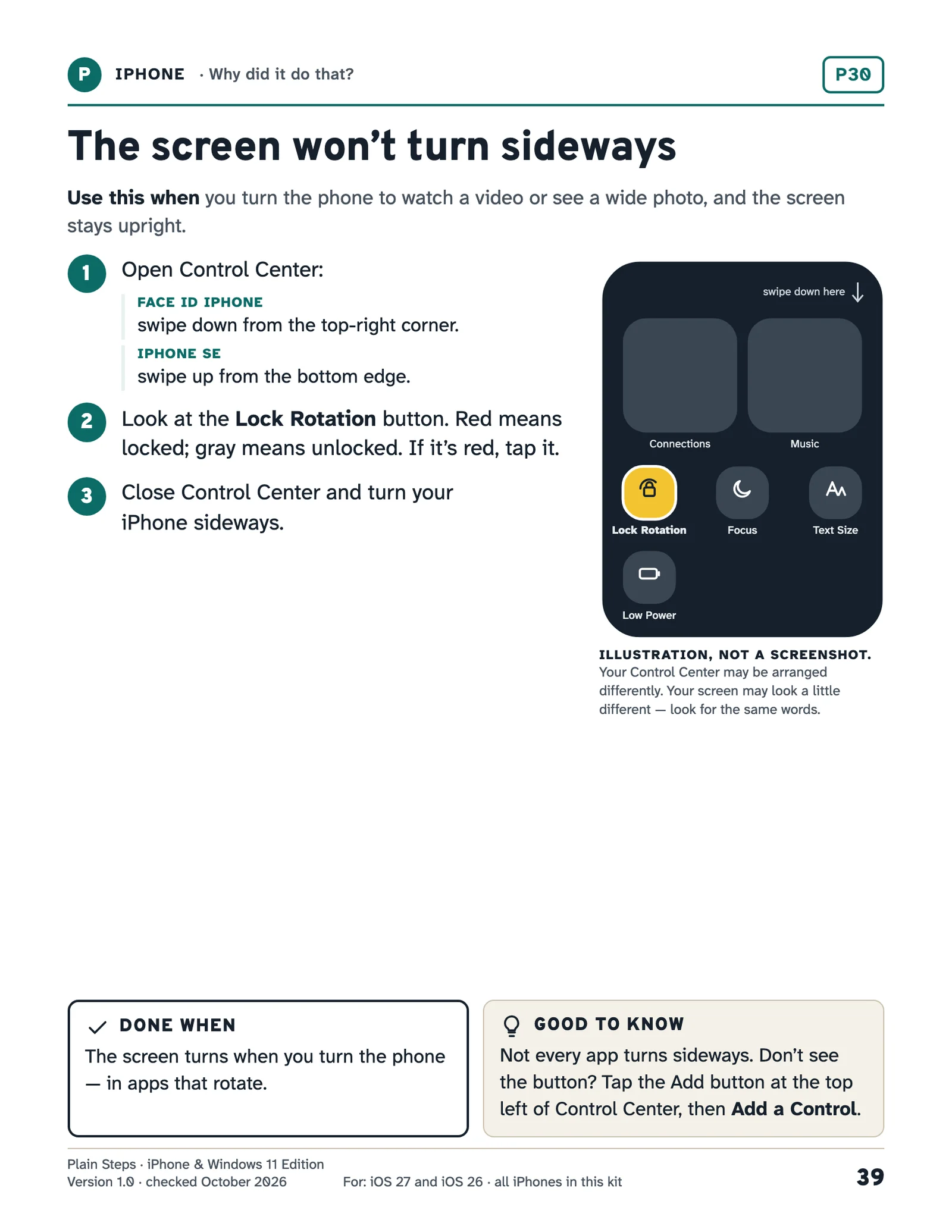
- P30 The screen won’t turn sideways
- P31 Calls and texts arrive silently
- P32 The colors look strange
Windows 11
- W01 Make the text bigger
- W02 Make everything bigger
- W03 Make the mouse pointer easier to see
- W04 Zoom in on a web page
- W05 Use Magnifier — and turn it off
- W06 Get the sound working
- W07 Find something you downloaded
- W08 Search for a file
- W09 Make a folder and move files into it
- W10 Save a file where you can find it again
- W11 What the little clouds and check marks mean (OneDrive)
- W12 Get back a file you deleted
- W13 Copy files to a USB stick
- W14 Take a screenshot
- W15 Copy, paste and undo
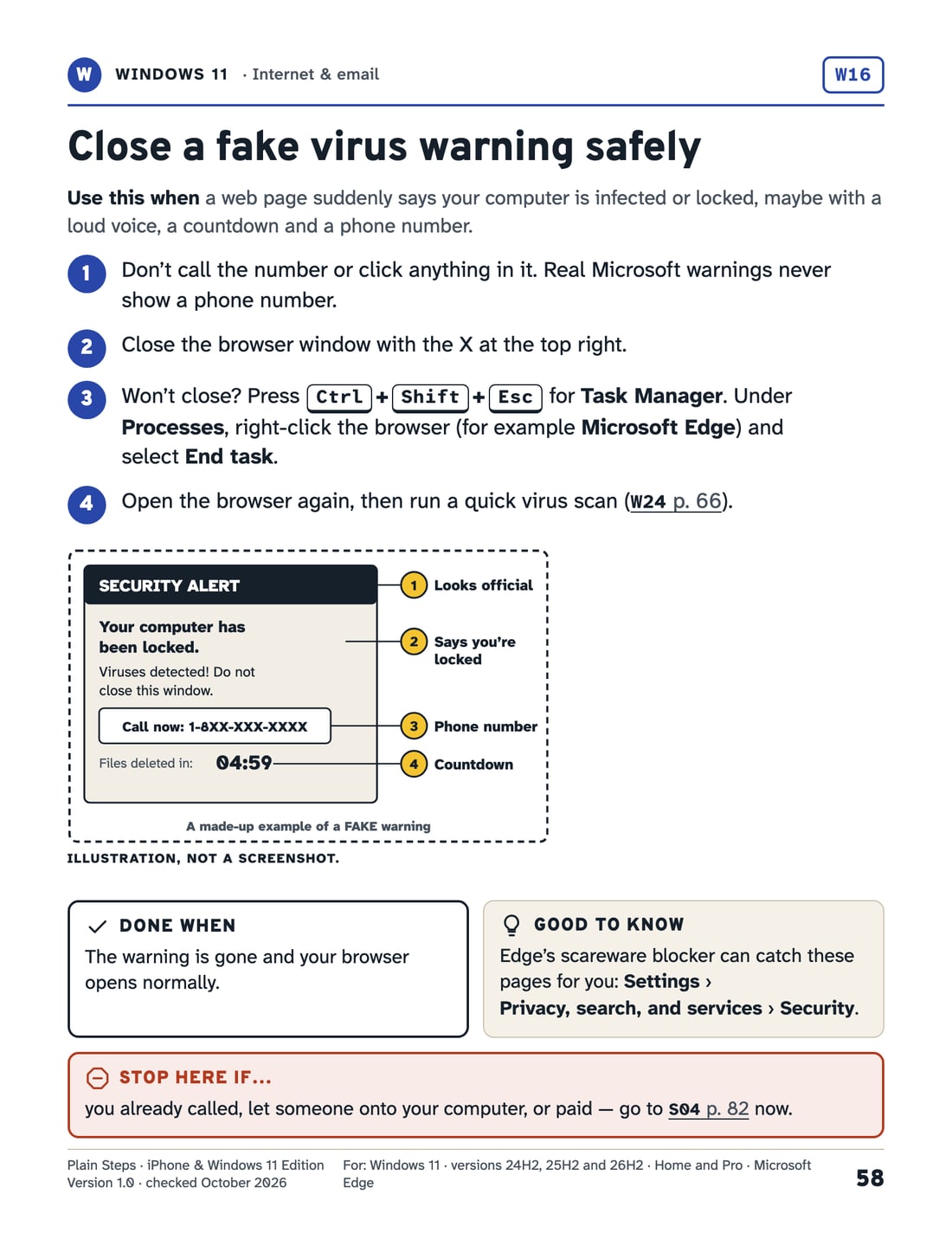
- W16 Close a fake virus warning safely
- W17 Connect to Wi-Fi
- W18 Save a favorite website
- W19 Attach a file to an email
- W20 Stop websites sending notifications
- W21 Print — or save as a PDF
- W22 Update Windows
- W23 Restart, shut down or sleep
- W24 Check for viruses with Windows Security
- W25 Remove an app you don’t want
- W26 Find your Windows version
- W27 Back up your files
- W28 Install apps safely
- W29 The Sticky Keys box keeps popping up
- W30 The computer started talking (Narrator)
- W31 A window vanished — or fills the whole screen
- W32 The screen turned sideways
Between them
- B01 Copy photos from your iPhone to your PC with a cable
- B02 See your iPhone photos on your PC with iCloud
- B03 See iPhone texts and calls on your PC (Phone Link)
Stay safe
- S01 Is it a scam? The 6-question check
- S02 What scam messages say
- S03 Real help or fake help?
- S04 If you think you’ve been scammed
- S05 Sign-in safety: codes, passwords and passkeys
- S06 Where to report a scam
- S07 Free, trustworthy help and learning
Fix-it flows
- F01 The Fix-It Ladder
- F02 No internet
- F03 No sound
- F04 The printer won’t print
- F05 iPhone says storage is full
- F06 Something changed on my screen
- F07 Locked out: a forgotten password or passcode
Records & practice
- R01 Before you tap: the 6-question Scam Check
- R02 The Fix-It Ladder
- R03 iPhone essentials
- R04 Windows keyboard essentials
- R05 Help note: “Here’s what happened”
- R06 My trusted helpers
- R07 My devices
- R08 Practice rounds: iPhone
- R09 Practice rounds: Windows
- R10 Settings I’ve changed
- R11 Monthly tech check-up
- R12 Suspicious message record
- R13 Things I want to learn next
Sample pages
Real pages, exactly as you’ll get them.
Select a page to read it full size. Or download 10 free sample pages and try a card on your own device.
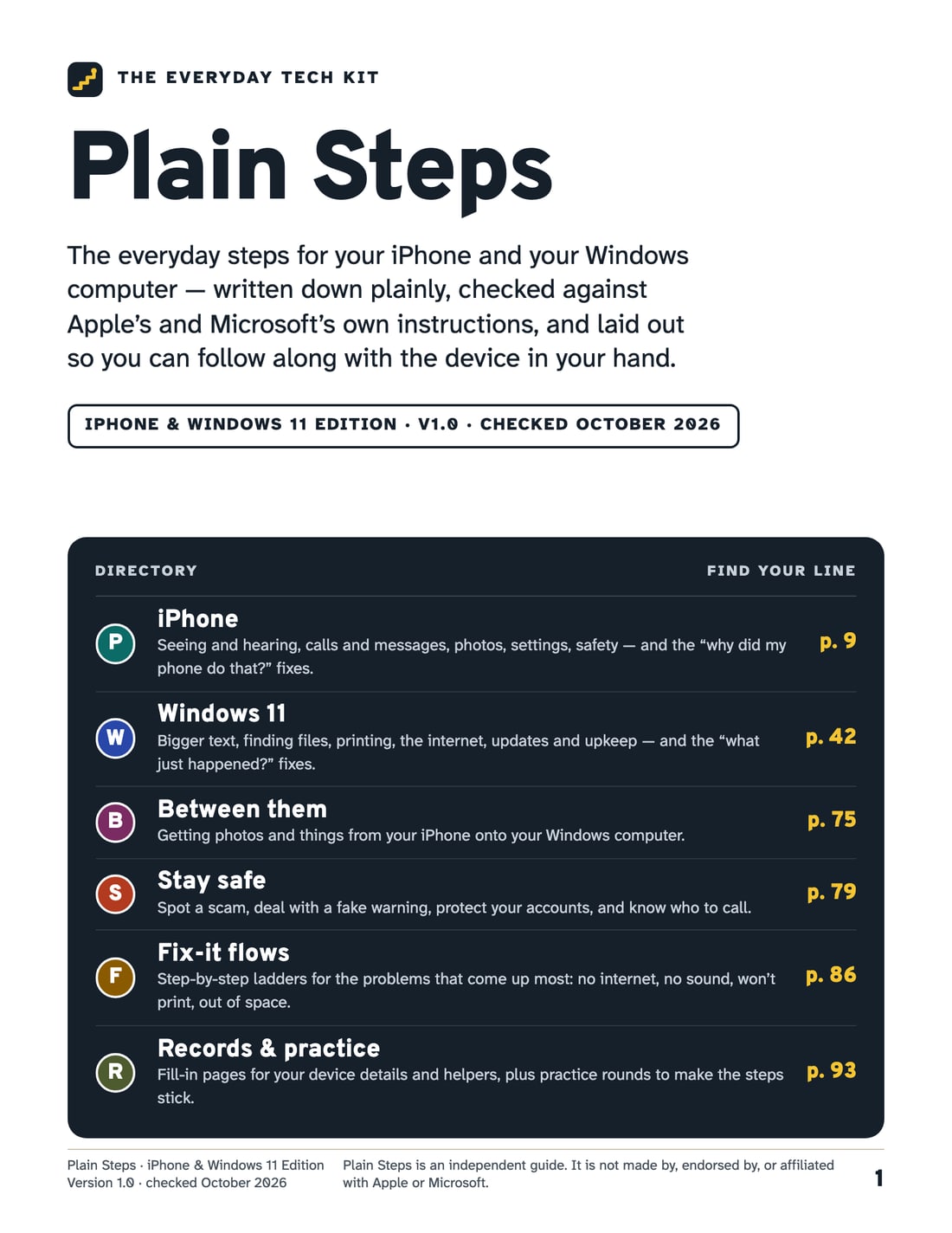
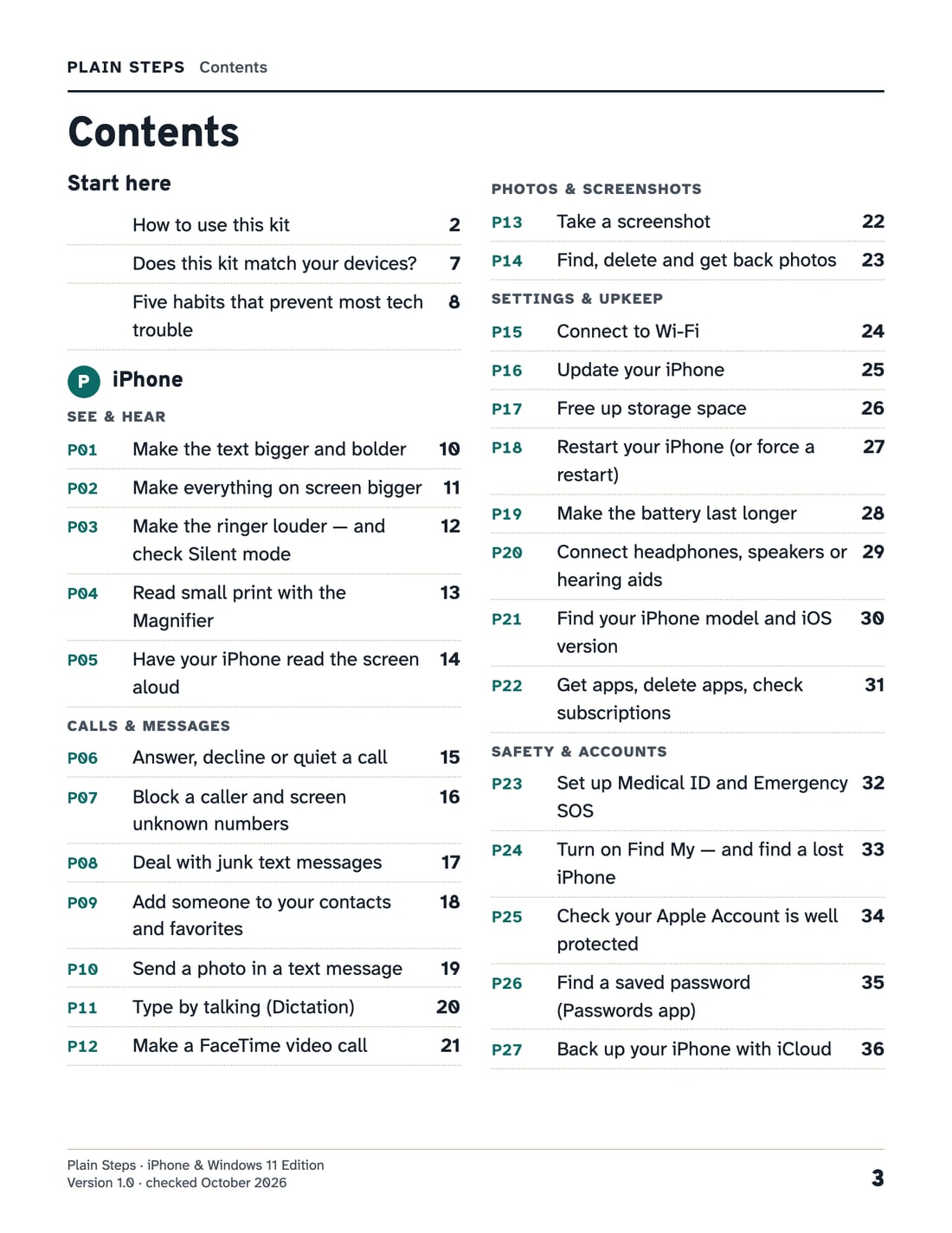
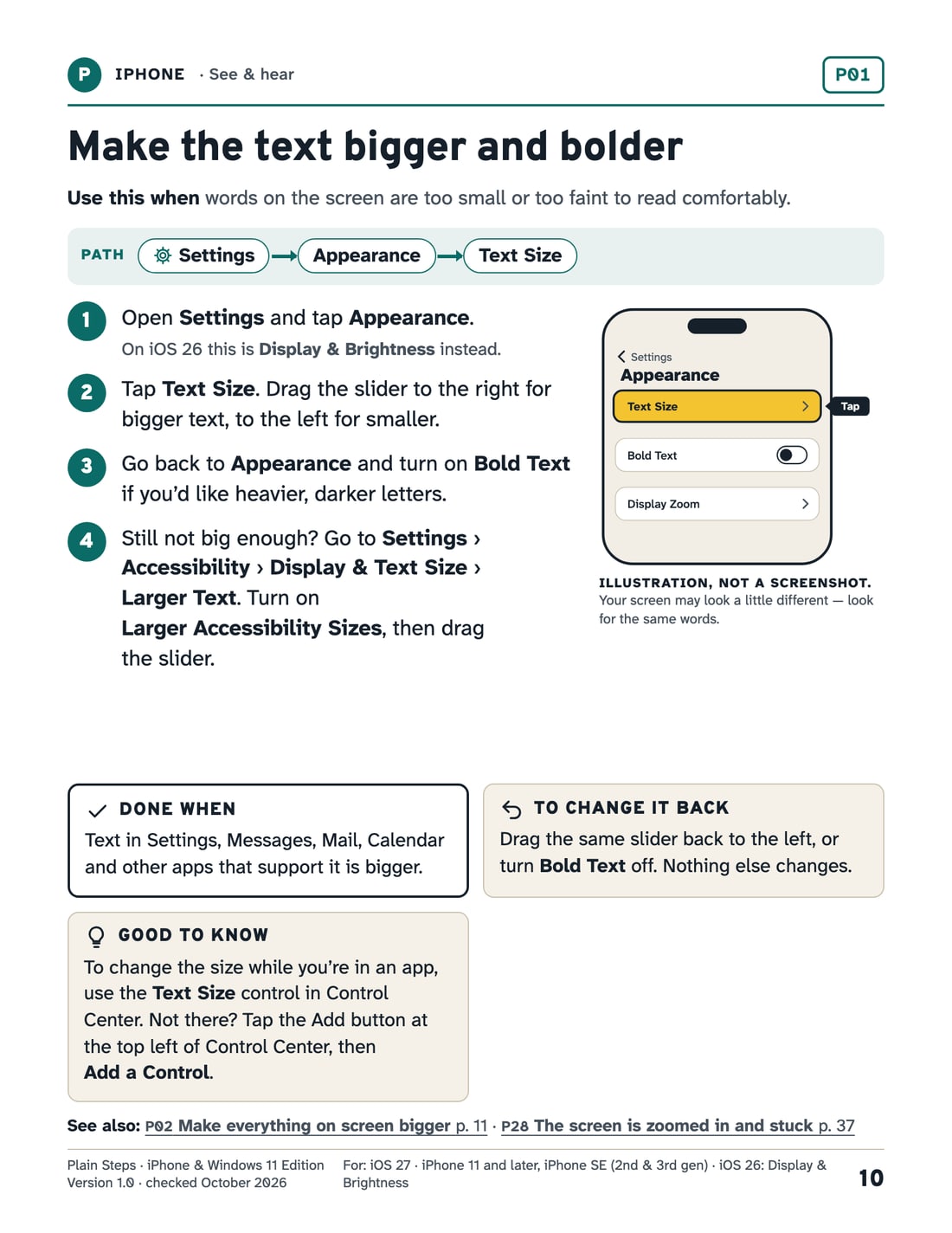
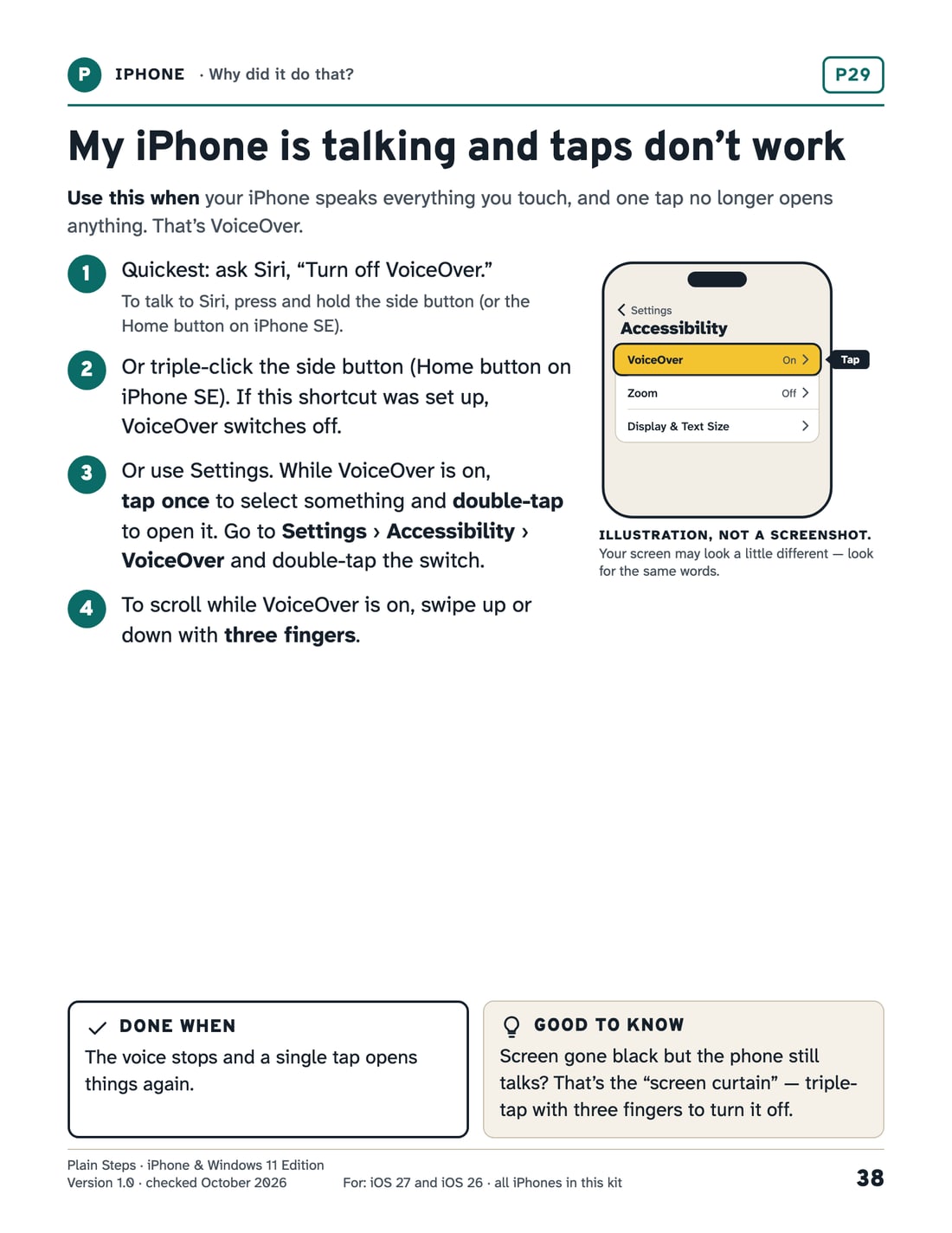
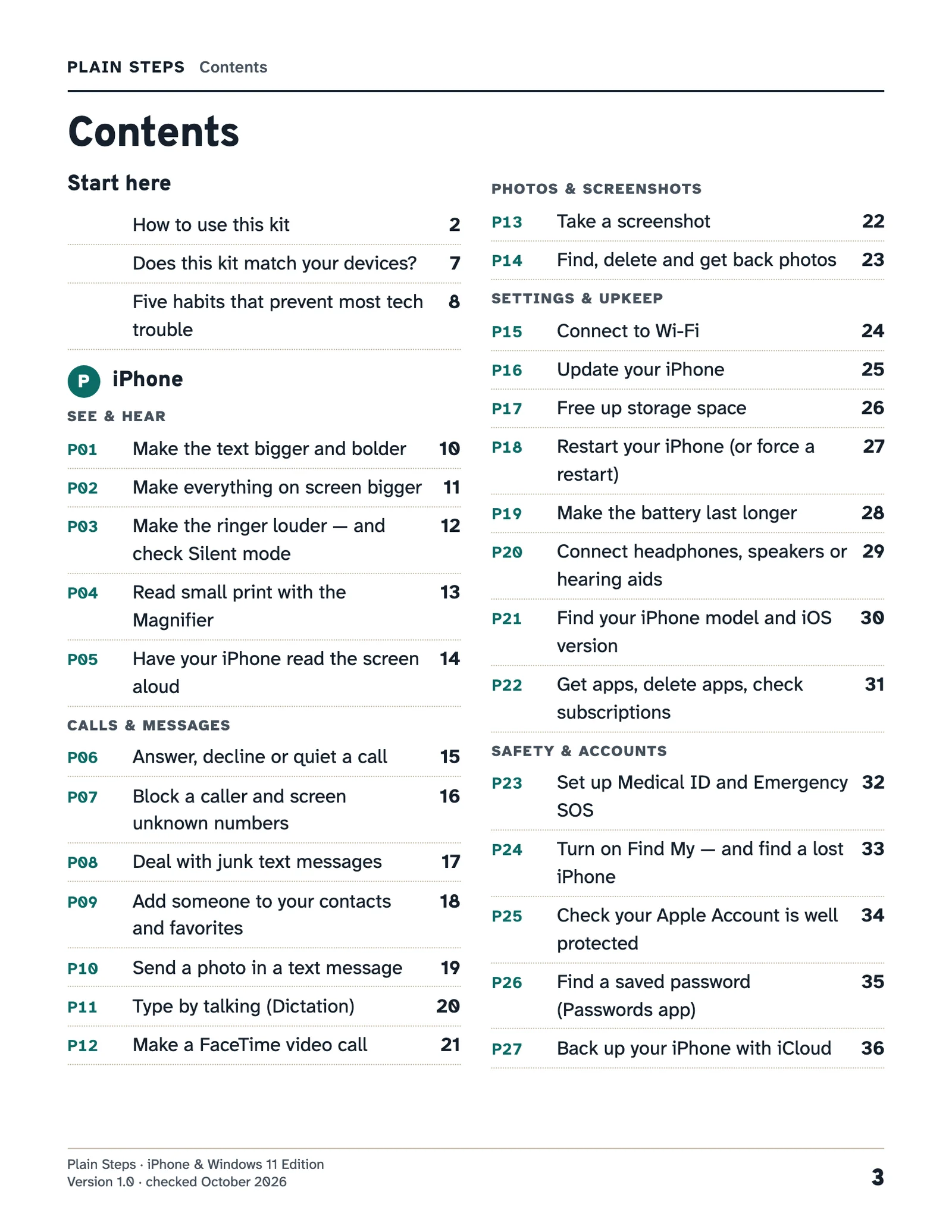
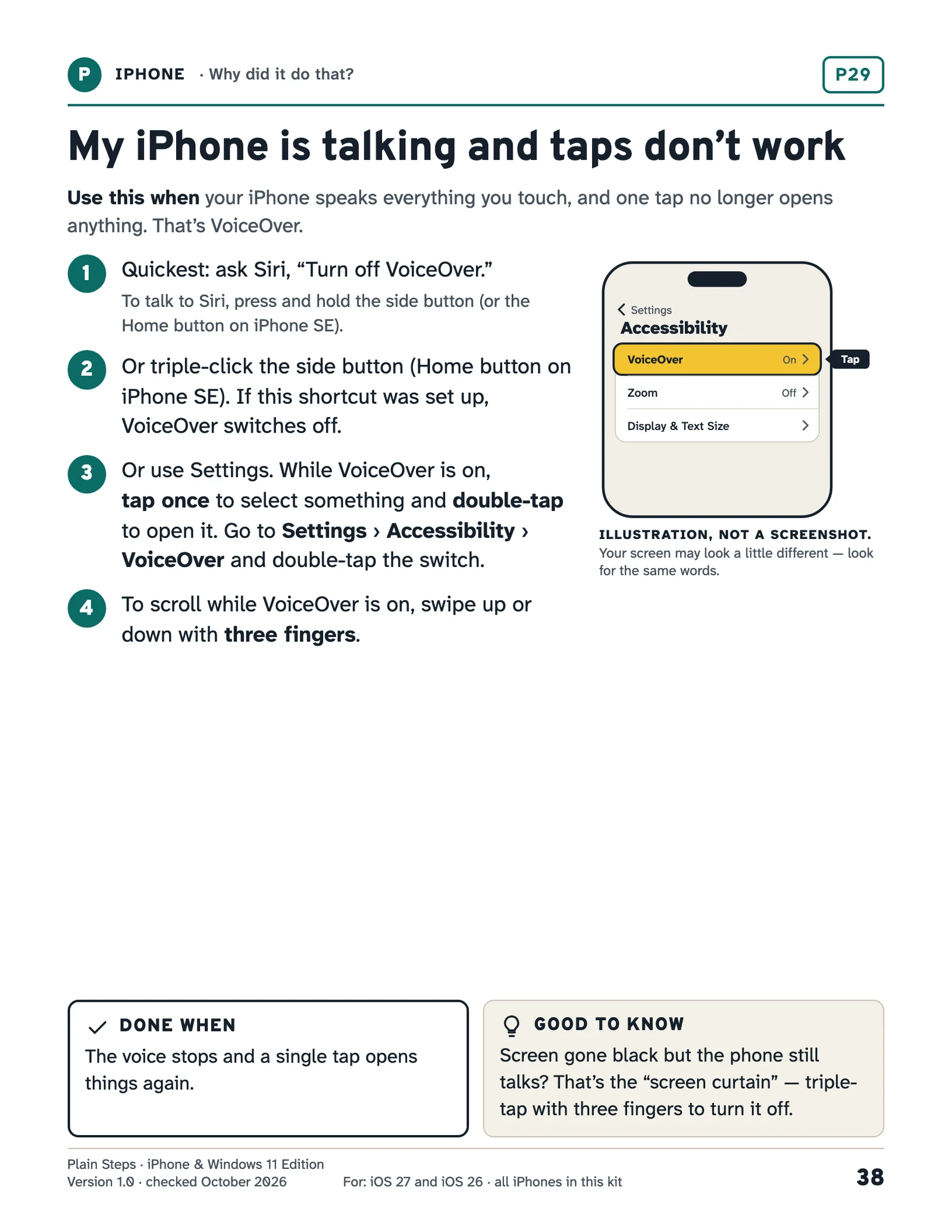
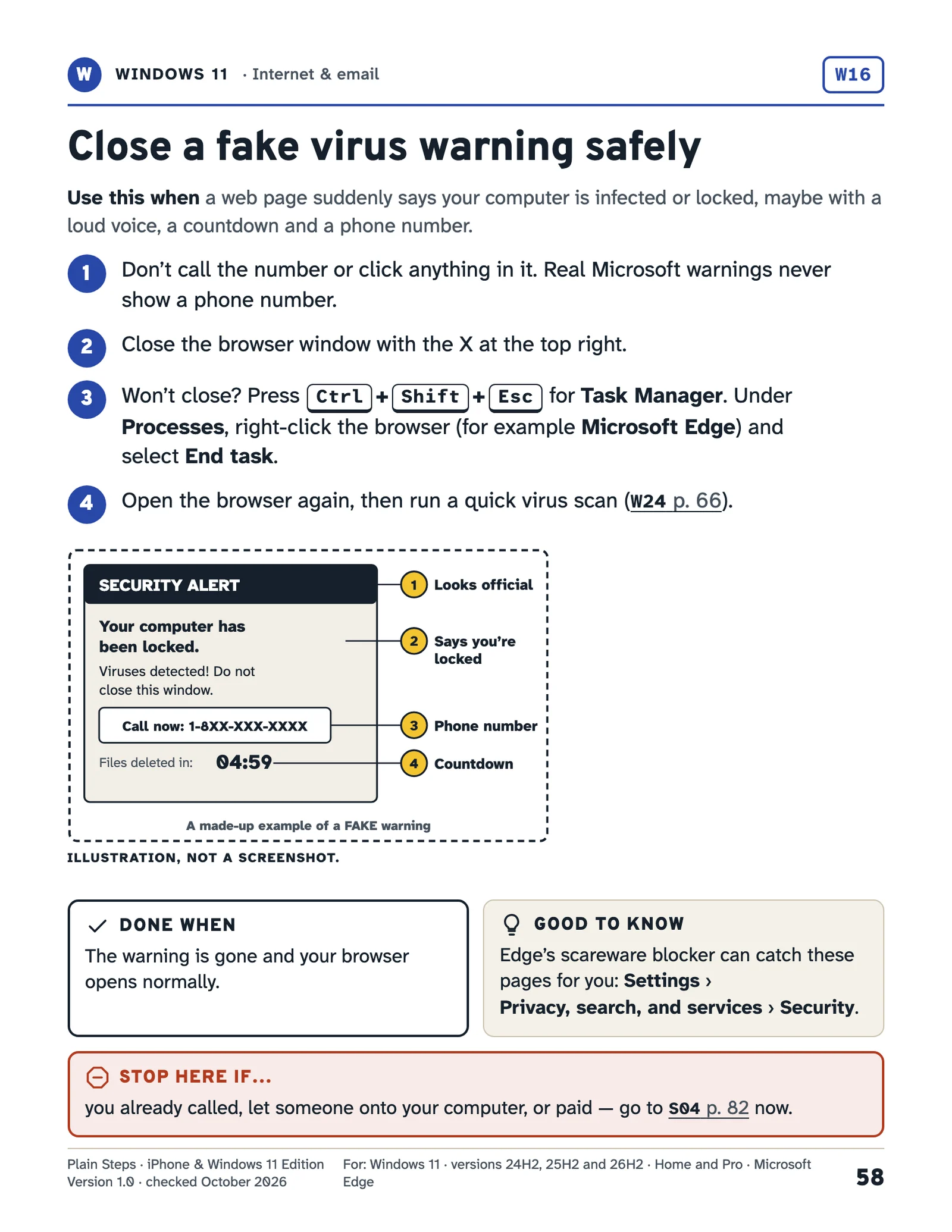
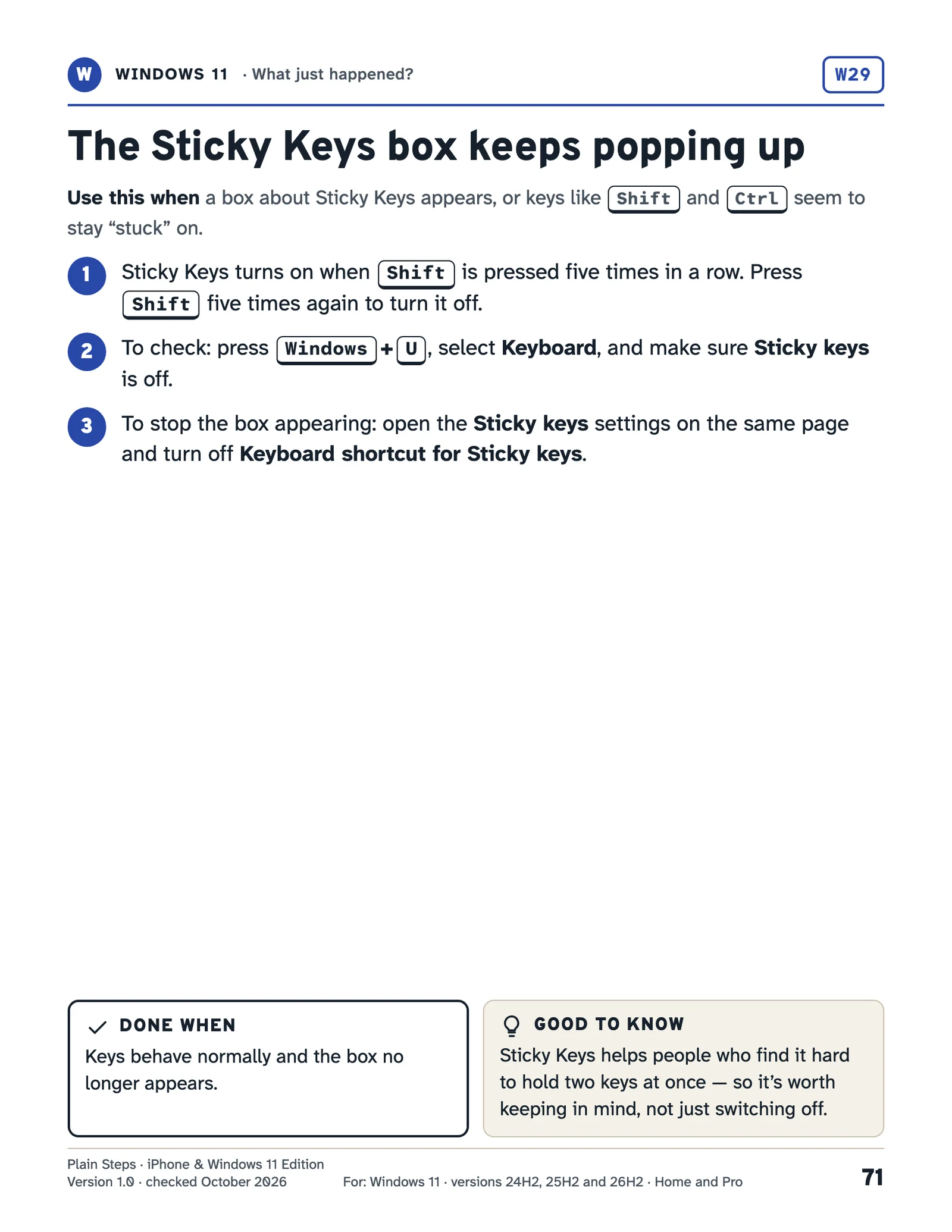
Printing on A4 paper? Get the A4 copy of the free pages (PDF, 235 KB).
Before you buy
Does it fit your devices?
This edition is written for the iPhone and Windows 11 software current in October 2026.
| Your device | Covered? |
|---|---|
| iPhone 11 or newer, or iPhone SE (2nd or 3rd generation) | Yes Written for iOS 27. Most steps are the same on iOS 26; where they differ, the card says so. |
| iPhone Duo (the foldable model) | No This edition wasn’t checked on it. |
| iPhone XS, XR, SE (1st generation) or older | No They can’t run iOS 26 or 27. |
| Windows 11 (24H2, 25H2 or 26H2), Home or Pro | Yes |
| A covered iPhone or Windows 11 computer on older software | Yes, after an update Update it first. The kit shows how: card P16 for the iPhone, W22 for Windows. |
| Windows 10 | No Its screens often look different. The Stay safe, Fix-it and Records pages still help. |
| Android, iPad, Mac or Chromebook | No Only the Stay safe, Fix-it and Records pages apply. |
How to check yours
iPhone
Open Settings, then General, then About. Look at iOS Version and Model Name.
Windows computer
Open Start, then Settings, System, About. Look at Edition and Version.
It’s for you if…
- You use an iPhone, a Windows 11 computer, or both.
- You’re a beginner, or someone showed you once and you’ve forgotten.
- You’d rather follow written steps than a video.
- You like having the steps on paper, beside the screen.
- You help someone and want them to manage on their own.
It’s not for you if…
- You use Android, an iPad, a Mac or a Chromebook.
- You want someone to fix the device for you. The kit shows the official help routes instead.
- You want advanced tips. These are the everyday jobs.
For family and friends
Helping someone else with their phone or computer?
Plain Steps is written for the person holding the device, so they can do the job themselves, at their own pace, without waiting for you to call back.
Give it as a gift
At checkout, turn on “Give as a gift?” and enter the other person’s email address, with a message if you like. You get the receipt; they get an email with the link to the files.
Set it up together
Print the desk cards and fill in “My devices” and “My trusted helpers” side by side. The free helper guide lists what to switch on first.
Let them do the taps
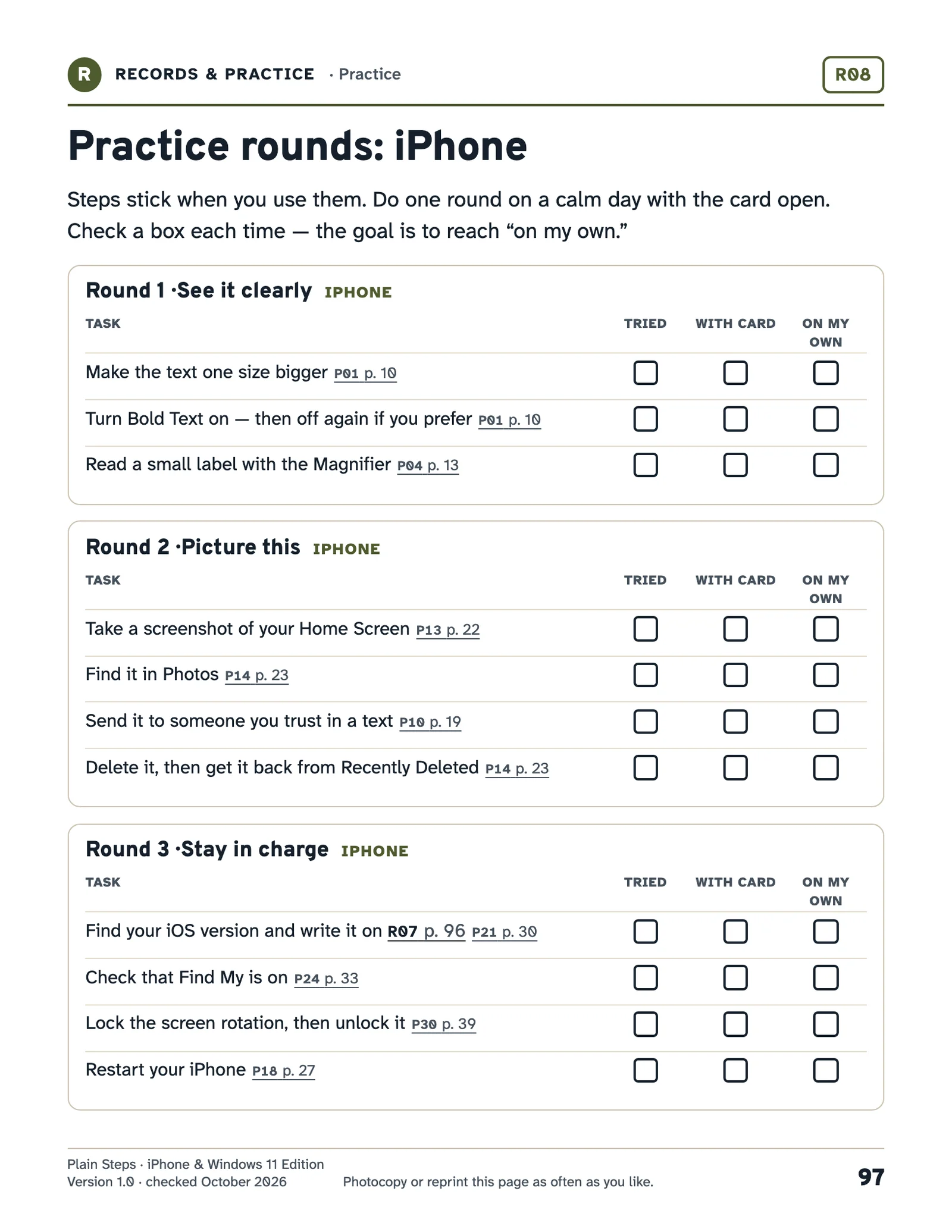
Practice rounds let them try each job with the card, then on their own. A help note lets them tell you exactly what happened, when they do need you.
Price
One kit. One payment.
Plain Steps: The Everyday Tech Kit — iPhone & Windows 11 Edition
$29 one payment
Priced in US dollars. Gumroad’s checkout may show the price in your local currency, and adds sales tax or VAT where it applies.
- The full guide and the 10-page Print & Keep pack, each in US Letter and A4, plus a short Start Here page
- Checked against Apple’s, Microsoft’s and other official pages on October 8, 2026
- If we correct or refresh this edition, the updated files appear on the same Gumroad page your receipt links to — at no extra cost.
- If the kit isn’t right for you, ask for a refund within 30 days of purchase — just reply to your Gumroad receipt email. You don’t need to give a reason or return anything.
Not included: an app, an account, a subscription or videos. It’s printable PDFs.
Get the kit — $29Gumroad runs the checkout, processes the payment and handles sales tax and VAT. Your card details go to Gumroad, not to us.
What you get
- 00 Start Here
- 01 Plain Steps Guide (US Letter)
- 02 Plain Steps Guide (A4)
- 03 Print & Keep Pack (US Letter)
- 04 Print & Keep Pack (A4)
You need only one paper size: US Letter in the United States and Canada, A4 in most other countries.
After you select “Get the kit”
Gumroad’s checkout opens
You don’t need a Gumroad account. It may show the price in your own currency, and you can pick another. Gumroad adds sales tax or VAT where it applies. There’s an optional tip, set to “No tip” unless you change it. You pay by card.
Your receipt arrives by email
Gumroad emails your receipt. Its View content button opens your files, and always brings you back to them. Gumroad may ask you to confirm your email address first.
Open “00 Start Here” first
It shows which file to use. Read on screen, or print the pages you want. Getting started has every step.
Straight answers
Checked, dated and clear about its limits.
Checked against the source
Every step was checked on October 8, 2026: device steps against Apple’s and Microsoft’s own support pages, safety pages against government agencies and nonprofits. All 215 sources are listed by card.
What we didn’t test
The steps were checked against official instructions, not on every model of phone and computer. If your screen looks a little different, look for the same words nearby.
Drawings, not screenshots
The pictures are simplified drawings, each labeled as an illustration, using the words on your screen.
Nothing to sign up for
It’s PDF files: no app, no account and no subscription. No worksheet has a place for passwords, on purpose.
Paid through Gumroad
Gumroad runs the checkout, processes the payment and handles sales tax and VAT. Your card details go to Gumroad, not to us. 30-day refunds.
No cookies, no tracking, no forms
No analytics scripts either. The buy buttons load Gumroad’s checkout script. Privacy.
A real reply
Questions about your purchase? Reply to your Gumroad receipt email. It comes to us.
Independent
Plain Steps is an independent guide. It is not made by, endorsed by, or affiliated with Apple or Microsoft.
Questions
Answers before you buy.
Something not covered here? After you buy, reply to your Gumroad receipt email.
I’m not confident with technology. Will I be able to follow it?
Yes, it’s written for that. Each card is one job, in plain words, with numbered steps and a way to check it worked. You don’t read it front to back; you look up the job in front of you. Try the 10 free sample pages to see for yourself.
Does it cover my iPhone?
Yes, if it’s an iPhone 11 or a later model, or an iPhone SE (2nd or 3rd generation). It’s written for iOS 27, and most steps also match iOS 26. It doesn’t cover the foldable iPhone Duo, which this edition wasn’t checked on, or the iPhone XS, XR and older models, which can’t run iOS 26 or 27. To check yours, open Settings, then General, then About.
Does it work with Windows 10?
No. It’s written for Windows 11 versions 24H2, 25H2 and 26H2, Home or Pro, and Windows 10’s screens often look different. The Stay safe, Fix-it and Records pages still help on any computer, and one page explains what the end of Windows 10 support means for you. To check which Windows you have, select Start, then Settings, then System, then About.
Is it a book, an app or a course?
It’s five PDF files: a short Start Here page, the guide (117 pages in US Letter, 116 in A4) and a 10-page Print & Keep pack, each in both sizes. You read them on screen or print them. There’s no app to install, no account to make and no video to watch.
Is the print big enough to read?
The numbered steps are printed in 14-point type and each card’s title in 27-point type, in Atkinson Hyperlegible, a typeface the Braille Institute designed to make letters easier to tell apart. Look at the real pages or the free sample to judge for yourself. On screen, you can zoom in as far as you like.
Do I need a printer?
No. The PDFs read well on a computer, tablet or phone, and you can search them for a word like “print” or “bigger”. Many people print just the desk cards and the pages they use most. Black-and-white printing works fine.
What if my screen looks different from the card?
Apple and Microsoft update their software several times a year. Each card names the software it was checked against and uses the exact words on your screen, and its path shows where to look nearby. If we correct or refresh this edition, the updated files appear on the same Gumroad page your receipt links to — at no extra cost.
How is this different from Apple’s and Microsoft’s own help?
Their support pages are free, accurate and long, and they’re where every step in this kit was checked. Plain Steps gathers the everyday jobs into one place, one page each, in the same shape every time, with fix-it pages and scam checks alongside. It’s made to be printed and kept by your devices.
How do I get the files after paying?
Gumroad emails your receipt. Its View content button opens your files, and always brings you back to them. Gumroad may ask you to confirm your email address first. You don’t need a Gumroad account. See Getting started for each step.
Is it a good gift for someone who isn’t confident with technology?
It’s written for exactly that reader: plain words, one job per page, and a way to check each step worked, so they can do it themselves. At checkout, turn on “Give as a gift?” and enter the other person’s email address, with a message if you like. You get the receipt; they get an email with the link to the files.
Can I share it with my family?
Yes. Print as many copies as you like for your household and for anyone you personally help, such as a parent who lives elsewhere. Please keep the files themselves within your household: don’t post them online or pass them around.
What if it isn’t right for me?
If the kit isn’t right for you, ask for a refund within 30 days of purchase — just reply to your Gumroad receipt email. You don’t need to give a reason or return anything.
Does it cover Android, iPad or Mac?
No. This edition covers the iPhone and Windows 11 computers. The Stay safe, Fix-it and Records pages still help with any device.
Free guides
Need one fix right now?
These free guides use the same checked steps as the kit.
Why is my iPhone talking?
It talks when you touch the screen, and one tap no longer opens anything. How to turn VoiceOver off, and what Speak Screen is.
Read the guideiPhone stuck zoomed in?
Everything is suddenly huge and you can only see part of the screen. How to zoom back out, and how to stop it happening.
Read the guideSticky Keys keeps popping up?
A box about Sticky Keys appears, or Shift and Ctrl seem stuck. How to turn it off, and how to stop the box coming back.
Read the guideComputer talking or zoomed in?
A voice reads everything out, or part of the screen is magnified and follows the mouse. How to turn off Narrator and Magnifier.
Read the guideMake the print bigger
Bigger, bolder words on the iPhone and in Windows 11, everything bigger at once, and how to zoom in on one web page.
Read the guideFake virus warning pop-up?
A web page says your computer is infected, with a phone number and a countdown. Don’t call. How to close it, and what to do if you already did.
Read the guideIs it a scam? Six questions
Six questions to ask before you click, call or pay, what to do if you already did, and where to report it.
Read the guideFind a downloaded file
Where Windows 11 puts the files you download, how to search for one, and how to save the next one where you’ll find it.
Read the guideHelping a parent with tech
What to set up together on an iPhone and a Windows computer, how to agree on scams, and what to write down, so they can manage on their own.
Read the guide
About Wren & Co.
Wren & Co. began in 2026 with one aim: to make well-made helpers that bring order to everyday life. Life gets messy: bills arrive on the wrong days, plans scatter, memories slip away. Each thing we make takes one of those tangles and makes it tidy, clear and easy to come back to. No jargon, no clutter, just quiet, useful tools that do their job well.
More from Wren & Co.
- Between Deposits A budget and cash-flow kit for Social Security, pensions and other fixed income
- Steady Ledger A plain-language tracker for savings, interest and dividends
- Calmer Nights, Easier Mornings A two-week sleep and morning kit, one change at a time
- The Everyday Memory Journal Thirty days of short memory activities, about ten minutes a day
- Fill In the Dots A family history starter map and research log for beginners
- Shoebox to Storybook Turn old photos and family stories into a family storybook
Keep the steps beside you.
67 everyday jobs for iPhone and Windows 11, one page each. One payment. No subscription. 30-day refund.